DDoS Console and Automatic Protection
Edge Admin integrates the OpenResty DDoS console for viewing protection status, configuring automatic protection, running interface jobs, and collecting packet samples.
This feature was first introduced in OpenResty Edge 26.9.1-1.
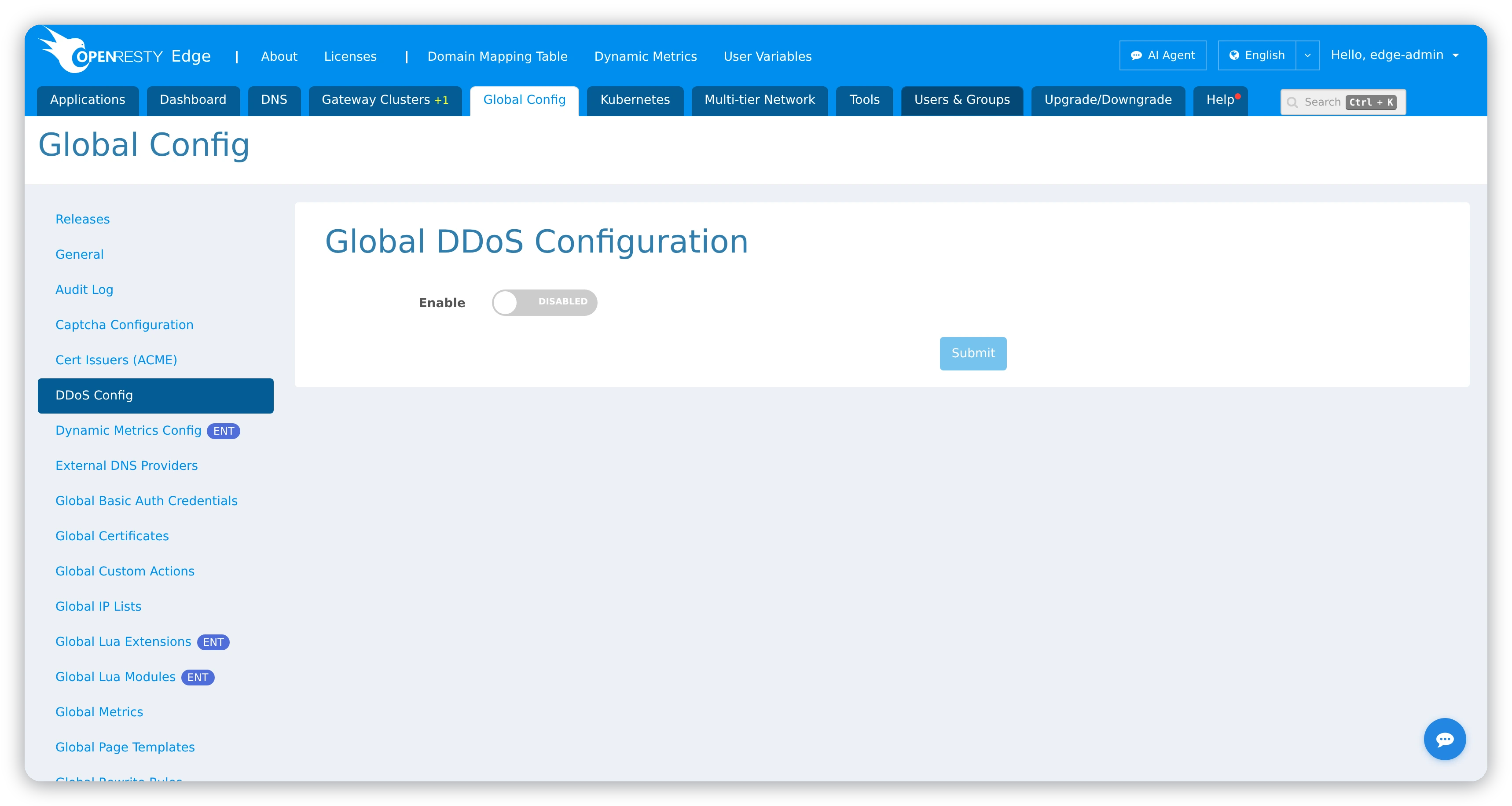
Configure the console connection
First obtain a scoped API token and make sure Edge Node can reach the DDoS console. Then open Global Config > DDoS Config and set Enable, the Console endpoint, and the API token. DDoS appears in the main navigation only once it is enabled.
Read protection state
Status is organized as Global > Clusters > Nodes > network namespaces and interfaces. Before changing policy, use the status map and metrics to tell protected, unprotected, unavailable, and unmapped agents apart.
An unreachable console, an invalid token, or a missing node-to-agent mapping produces an incomplete view. Resolve the connection or mapping error rather than treating an interface you cannot see as protected.
Configure automatic protection
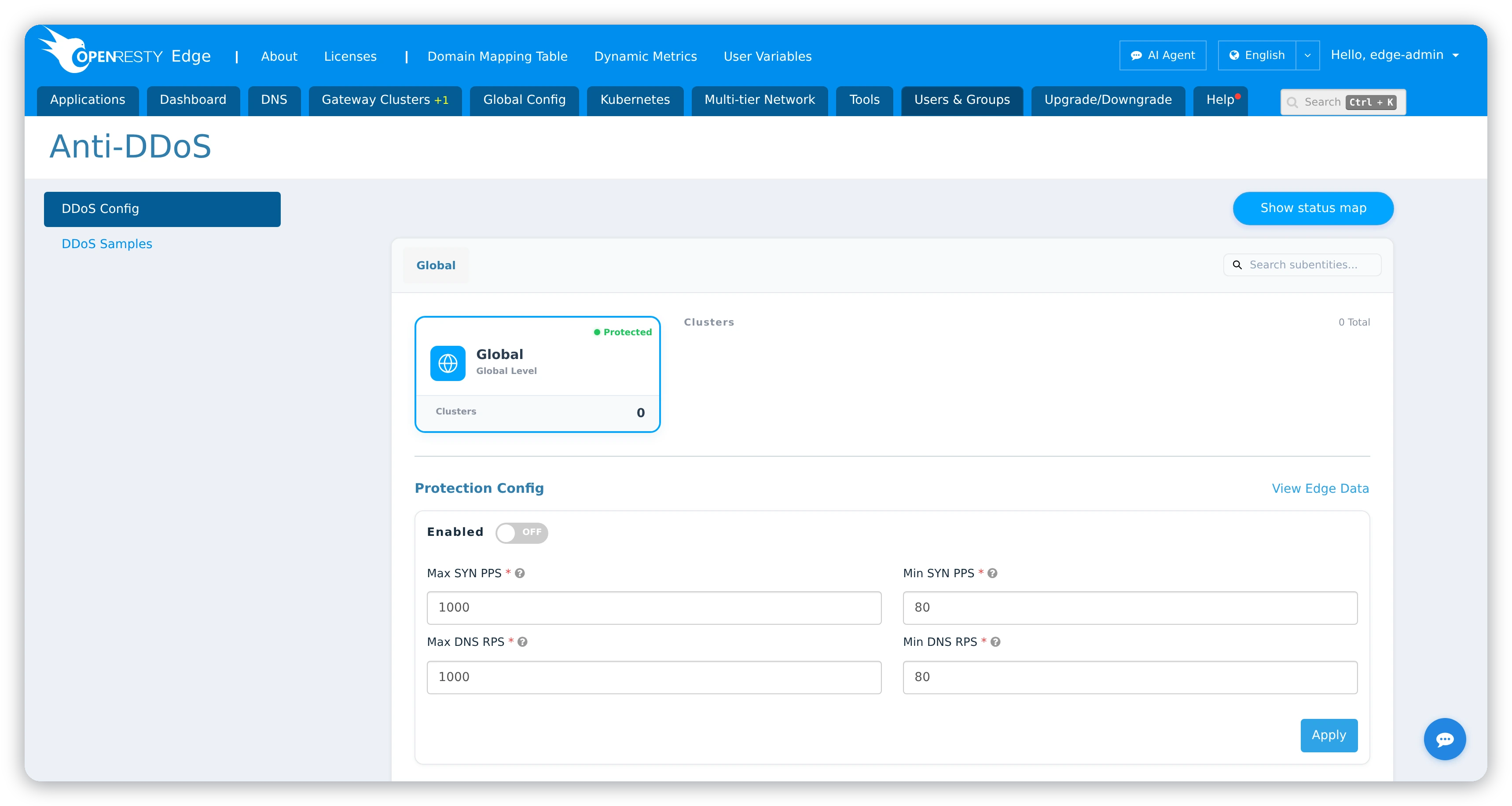
Enable automatic protection globally, then set each cluster or node to Inherit, Enabled, or Disabled: Inherit takes the parent’s setting, and the other two override it at that level.
Set maximum and minimum thresholds for SYN PPS and DNS RPS. The maximum threshold triggers attack protection, and the minimum determines when the system may leave or remain in that state.
Editing a field alone has no effect. Select Apply, wait for synchronization, and confirm the effective state on the target nodes.
Run interface jobs
At interface level you can start, stop, or restart DDoS protection. Review the job parameters before submitting, then follow the live output until the job completes. Use Anti-DDoS History to investigate earlier jobs.
Never start or stop an interface in a production cluster just to try the UI. Use a dedicated test node.
Collect packet samples
Open DDoS Samples, choose an agent, enter a positive sample count, and start collection. Completed entries can be listed and downloaded as PCAP files.
PCAP files can contain payloads, credentials, personal data, and internal addressing. Restrict access, limit collection size and duration, encrypt stored samples, and delete them according to your incident-retention policy.
If collection or download fails, check the agent mapping, job status, console reachability, token scope, available disk space, and browser download policy.