Global Lua Modules
When writing custom Edge rules in Edgelang, you may sometimes need to invoke a custom Lua module. In such cases, you can add the Lua module through Global Lua Modules.
1. Creating a Global Lua Module
Let’s take a look at how to create a global Lua module and reference it in Edgelang.
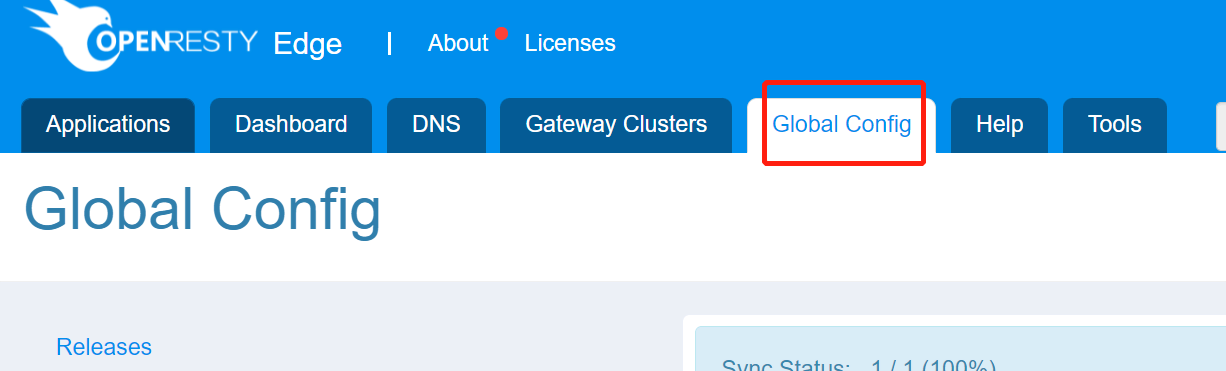
First, click Global Configuration:
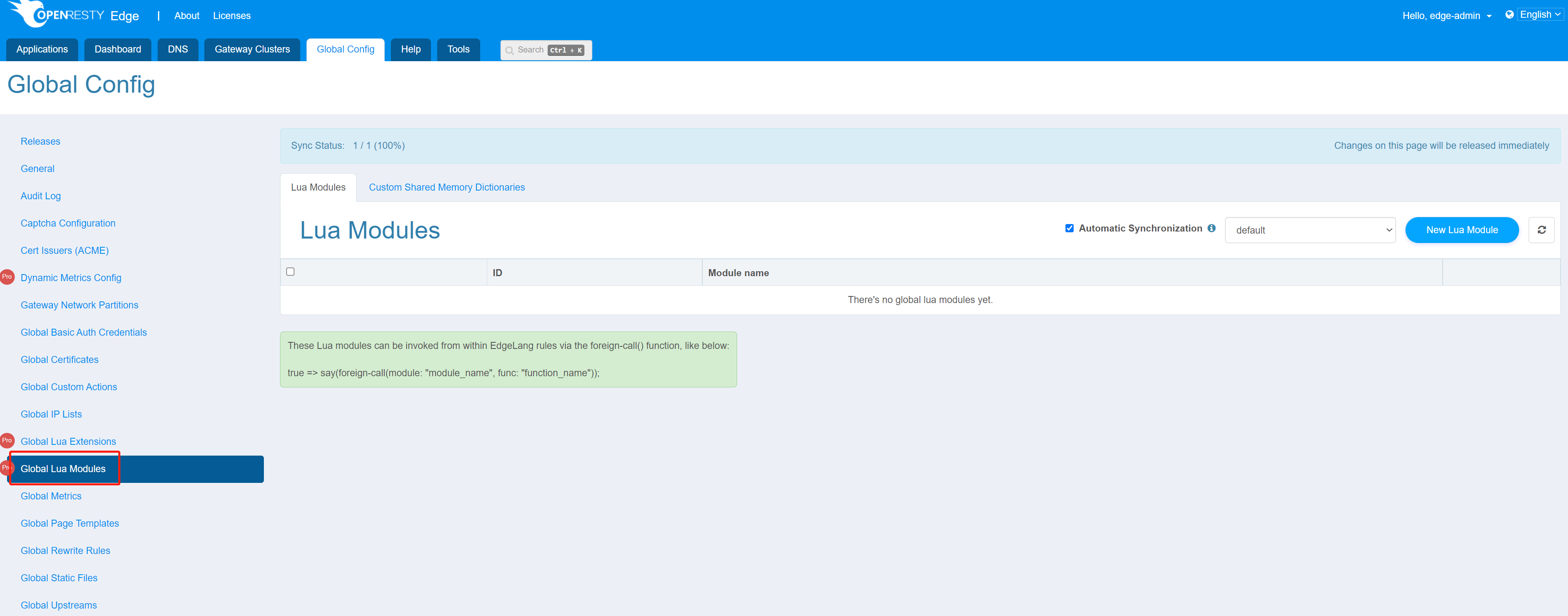
Then click Global Lua Modules in the left navigation bar to enter the Global Lua Modules page.
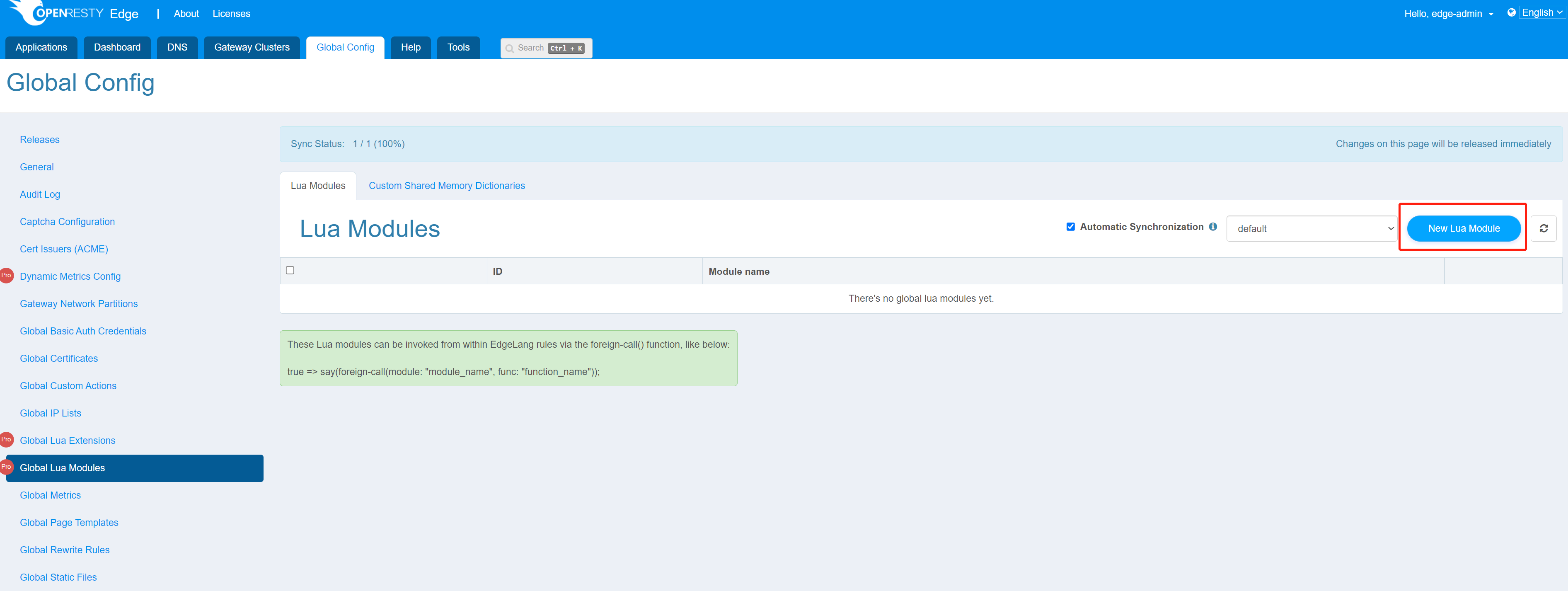
This page lists all existing global Lua modules. Click the New Lua Module button to create a new module.
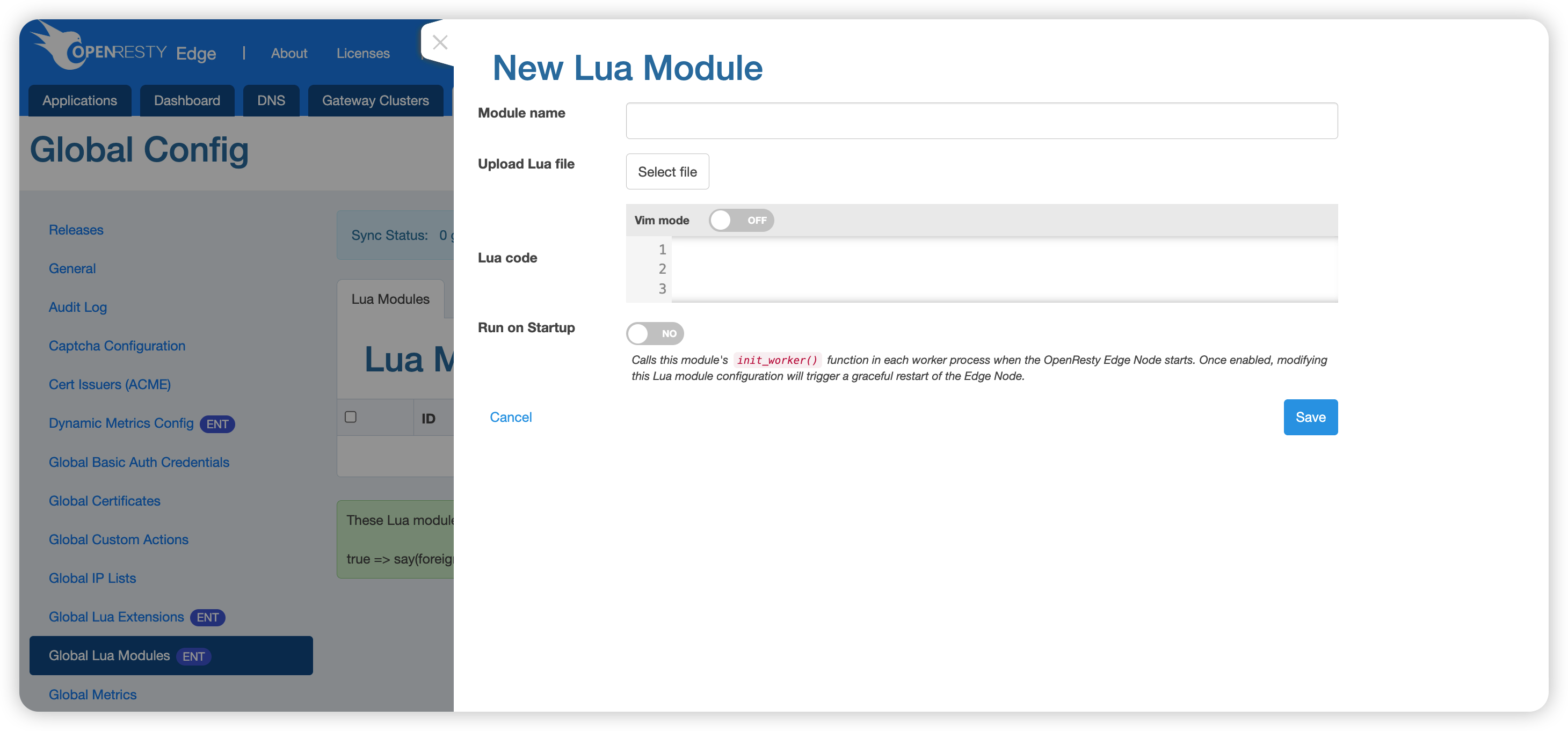
The New Lua Module dialog provides the following configuration options:
- Module name: The name of the module, which will be used when referencing it in Edgelang.
- Upload Lua file: Click Select file to import an existing
.luafile directly. The module name defaults to the file name. - Lua code: Write Lua code directly in the editor. You can enable Vim mode while editing.
- Run on Startup: When enabled, the Edge Node will invoke this module’s
init_worker()function during the initialization of every worker process at startup. Note: once enabled, any modification to this Lua module’s configuration will trigger a graceful restart of the Edge Node. This option was first introduced in version26.6.1-1.
For example, here is a simple module that returns a greeting:
local _M = {}
function _M.say_hello()
    return "hello world!"
end

return _M
After filling in the fields, click the Save button. The Lua module will be automatically distributed to every node, after which it can be referenced in Edgelang code:
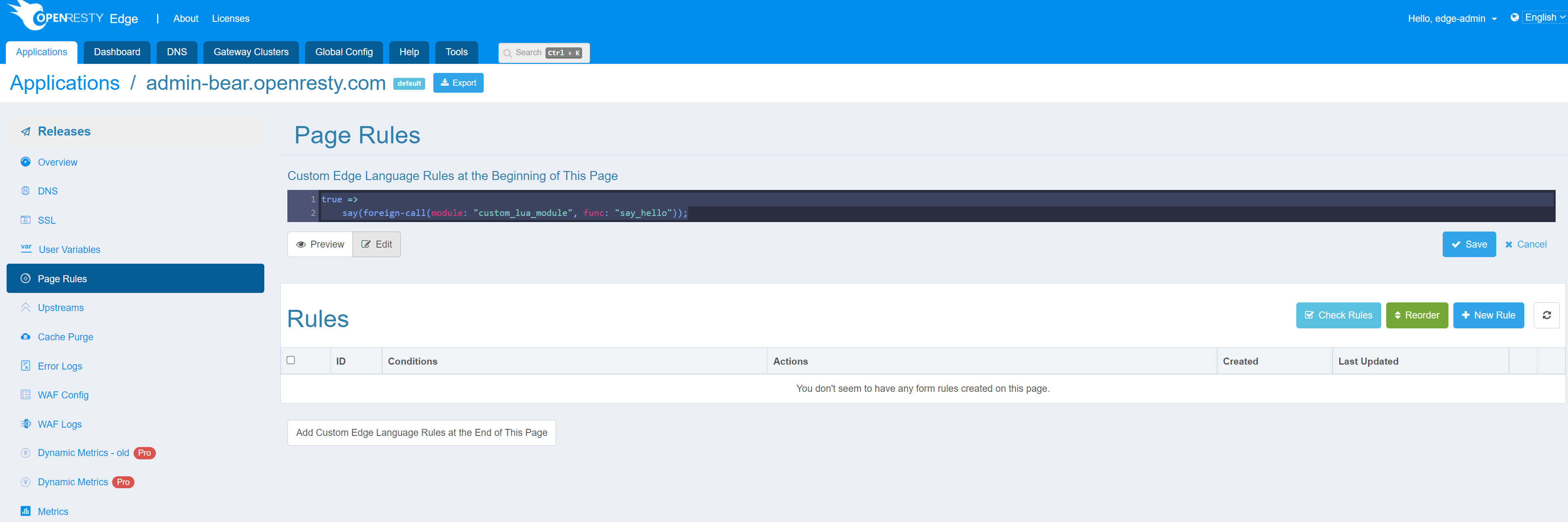
true =>
    say(foreign-call(module: "custom_lua_module", func: "say_hello"));
2. Synchronization Options
At the top right of the page are the Synchronization Options, which have the same meaning as described in Global Configuration.
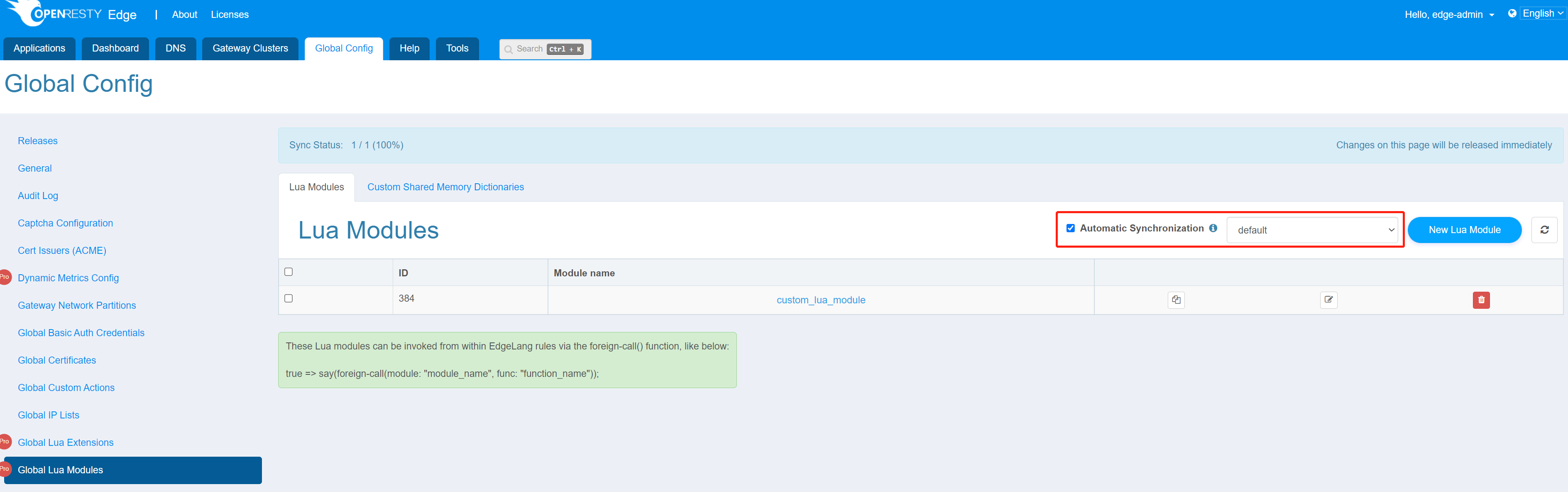
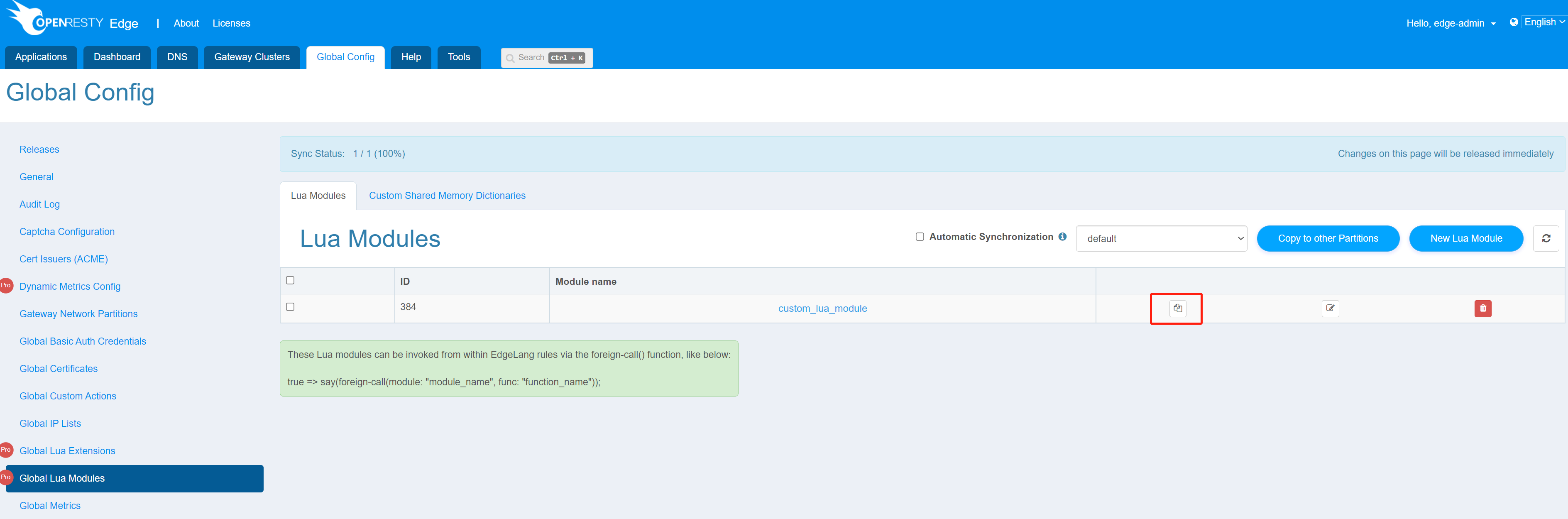
One difference is that, when Synchronize automatically to other partitions is unchecked, Global Lua Modules supports not only copying all Lua modules to a specified partition but also copying an individual Lua module to a specified partition. Let’s click the Copy button.
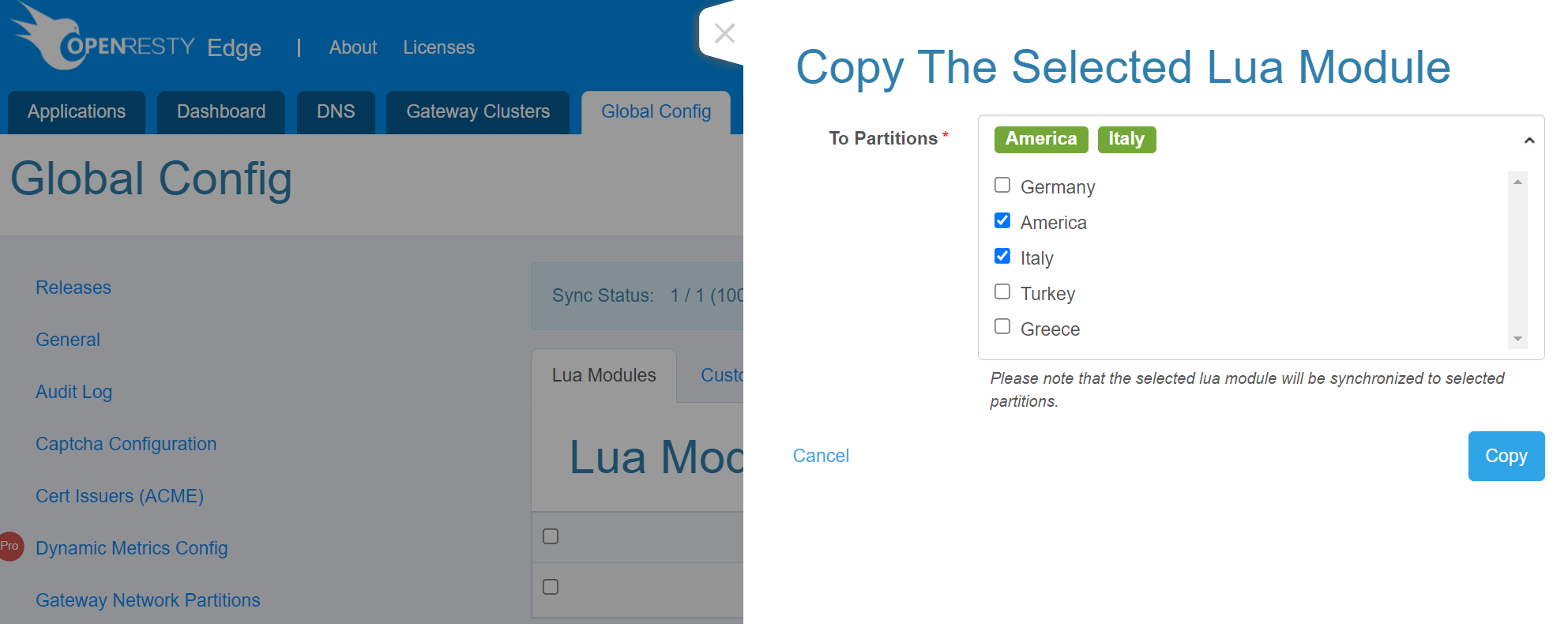
Then select the partition to sync to and click copy. The configuration of the current partition will overwrite that of the specified partition.
3. Change History
You can view the change history of Lua modules within the same partition on the Releases page. Let’s click the Releases button.
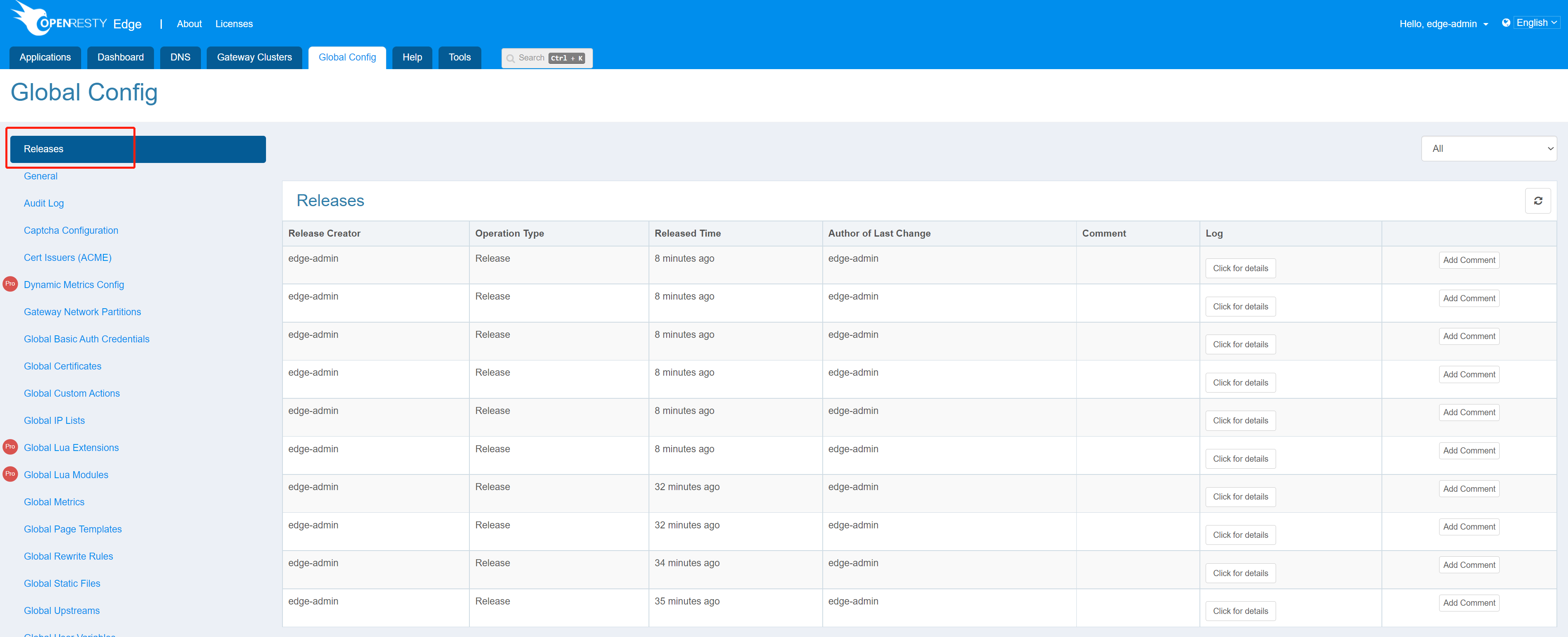
Find the corresponding release entry and click View Details.
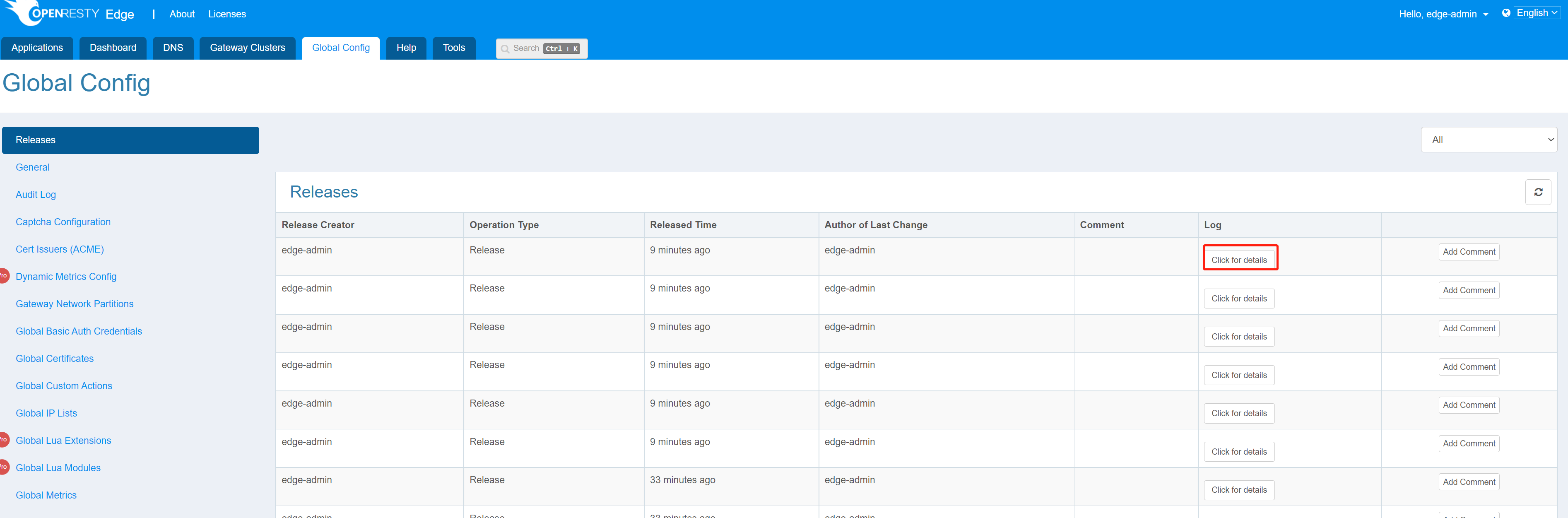
You will then be able to see the changes made in this release.
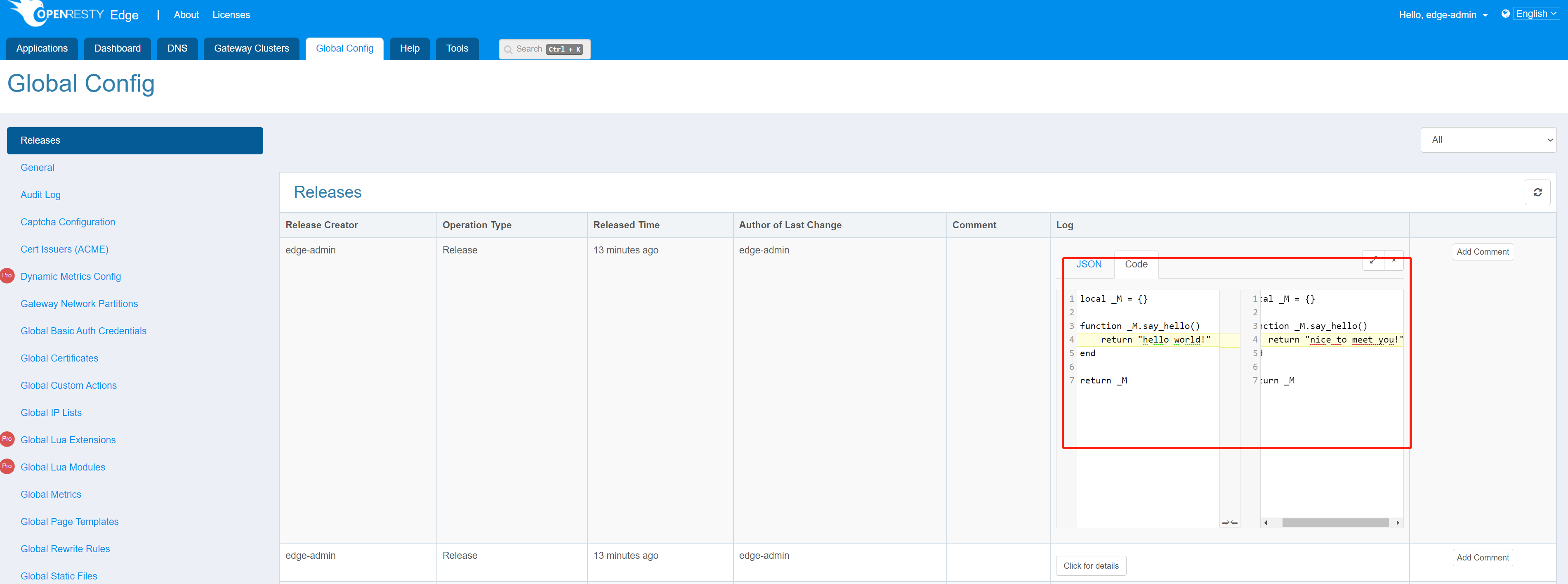
4. Search Lua Modules
Use the search field on Global Lua Modules to filter the current page. Search matches both module name and Lua code.
Press Ctrl+K on Windows or Linux, or Cmd+K on macOS, to open global search.
Global Lua Module results include the partition so that identical module names
can be distinguished. The backing search supports pagination and partition
filters.
5. Custom Shared Memory Dictionaries
The Custom Shared Memory Dictionaries tab of the Global Lua Modules page defines shared memory dictionaries for gateway nodes. Each dictionary becomes an nginx lua_shared_dict zone with the given name and size, and all worker processes of a gateway node share its data. Lua code, such as a global Lua module, accesses a dictionary through ngx.shared.<name>. For an example, see Custom Challenge, whose Lua module stores CAPTCHA answers in ngx.shared.captcha_store.
Click New Custom Shared Memory Dictionary, enter the Name and Size of the dictionary, and click Save. Use Edit and Delete in the list to change or remove a dictionary. A change takes effect as soon as it is saved, without a release, and restarts the Edge Node processes through a binary upgrade. See Configuration and Process Updates for details.
Dictionaries are configured per partition. The tab has its own partition selector and follows the same Synchronize automatically to other partitions option as the Lua Modules tab, because Lua modules use the dictionaries. The option is shown on both tabs when the default partition is selected:
- When the option is enabled, only the
defaultpartition can be edited. The dictionaries saved there replace the dictionaries of all other partitions. - When the option is disabled, each partition keeps its own dictionaries. This tab has no copy function, and
Copy to other Partitionson the Lua Modules tab copies Lua modules only, so create a dictionary in every partition that needs it.
Enabling the option does not copy any dictionary by itself. The other partitions receive the dictionaries of the default partition the next time a dictionary is saved or deleted there. Until then, a Lua module that is synchronized to another partition cannot use a dictionary that exists only in the default partition. To copy them at once, click Edit on any dictionary of the default partition and click Save without changing it.
A save fails while any partition that it applies to has unreleased changes on the General page. Release those changes on the Releases page first.
Changing dictionaries needs the write permission of Global Lua Modules, and saving them through the API path partitions/{partition_id}/ngx needs the write permission of General as well. In earlier versions the write permission of General was enough, so after an upgrade, give the Global Lua Modules write permission to the user groups that manage dictionaries.
Configuring dictionaries per partition was first introduced in OpenResty Edge 26.12.1-1. In earlier versions, all partitions share one list of dictionaries.