Limit Request Concurrency
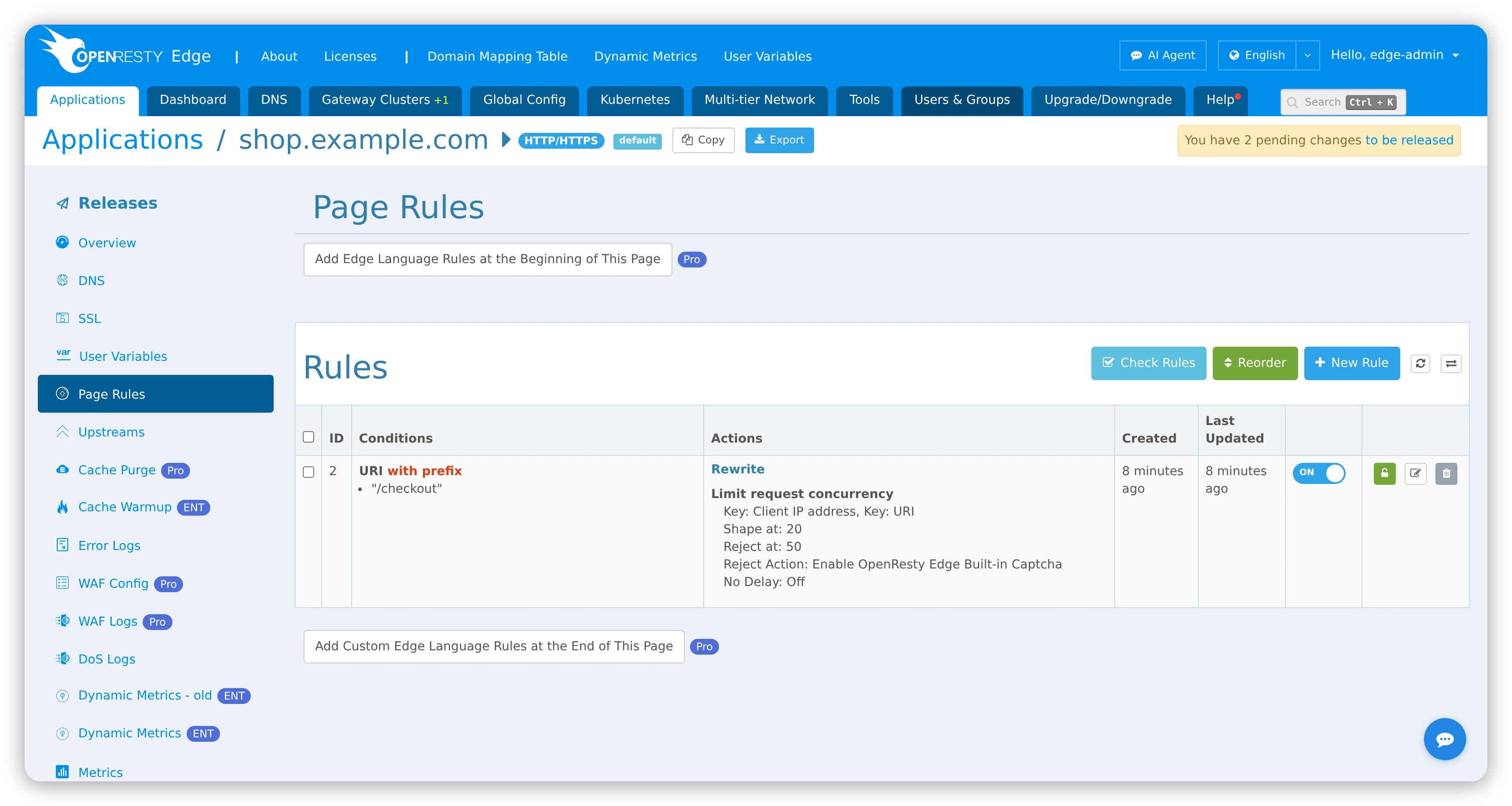
Limit request concurrency caps the number of simultaneous requests in a key space you choose: concurrency above the shape threshold is shaped, and above the reject threshold requests are rejected.
Configure the action
- Open the target HTTP application’s Page Rules.
- Create or edit a rule and add Limit request concurrency.
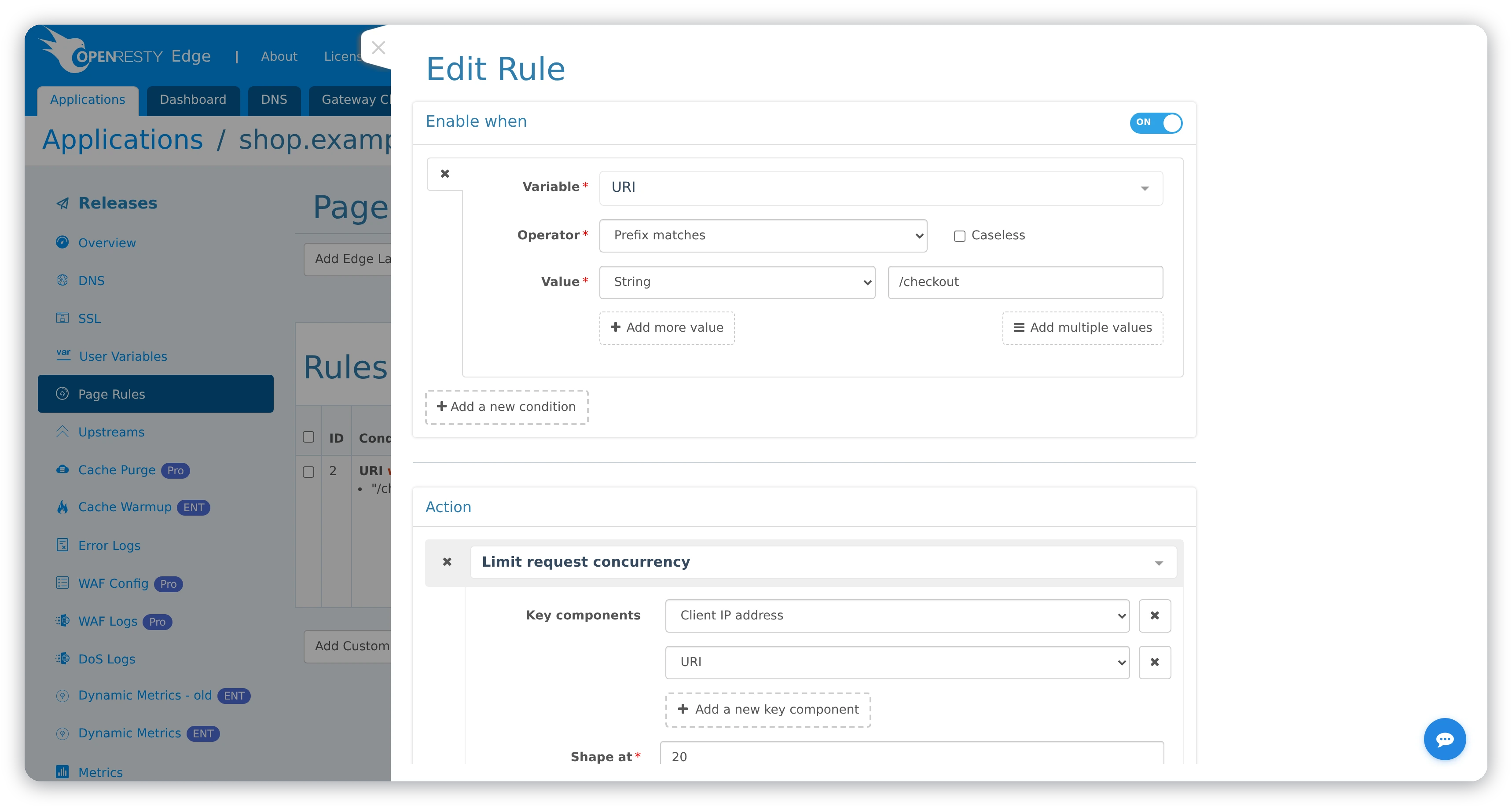
- Add one or more Key components, such as client IP address, URI, Cookie, or a request header.
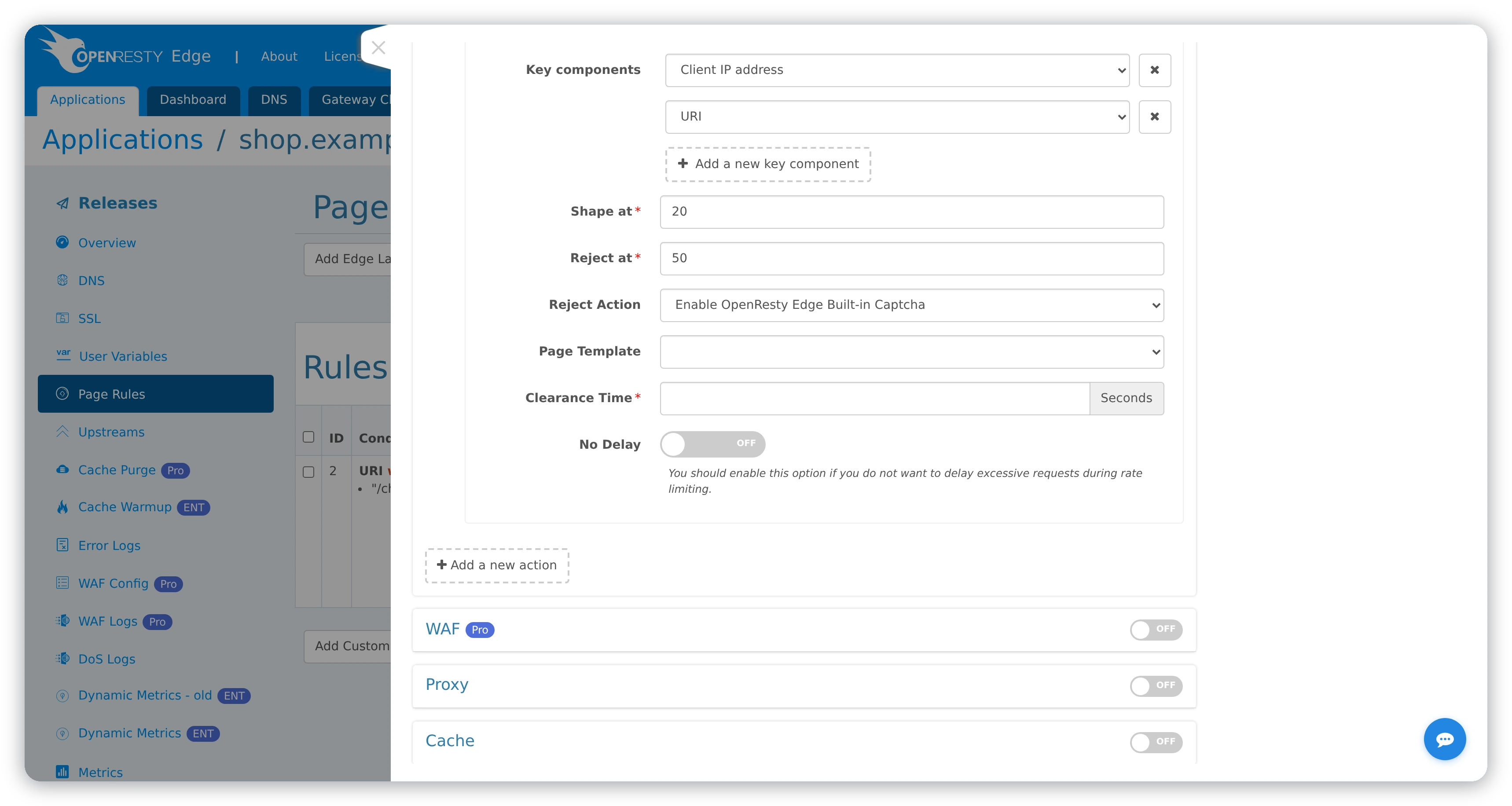
- Set Shape at and Reject at.
- Select a Reject Action and fill in its required fields.
- Save, release the application, and test with controlled concurrent traffic.
Shape at defaults to 1 and Reject at to 10. Both take non-negative integers, and Reject at cannot be lower than Shape at.
Choose keys that represent the resource you actually need to protect. Before
trusting an X-Forwarded-For value, make sure only trusted proxies can supply it
and that they overwrite whatever the client sent.
Reject actions
The action can return an error or a page template, require CAPTCHA, hCaptcha, JavaScript Challenge, Redirect Validate, or Private Access Token, and use the other reject actions that the current Edge Admin form offers.
Private Access Token additionally needs a fallback and a Clearance Time,
which defaults to 60 seconds.
A Page Template fallback requires a template; custom Edge CAPTCHA and hCaptcha
templates must contain ::CAPTCHA_BOX:: and ::HCAPTCHA_BOX:: respectively;
JavaScript Challenge uses no template.
For PAT issuer, permission, fallback, and release behavior, see Private Access Tokens.